


Skip to content
Information team+90 (216) 235 14 17Weekdays 09:00 – 00:0025% revenue share for resellers for 12 months
FeaturesPricingResellersCall the information team+90 (216) 235 14 17 · Weekdays 09:00 – 00:00
Management

Staff and timesheets

Tasks, shifts, leave and timesheets in one place. Every screen in the panel comes with its own “How do I…?” guide; if you get stuck, ask Yona, our AI robot.

  • Tasks, shifts and leave
  • Timesheets
  • A simple screen of their own for everyone
What can you do?

What's in this section?

Each item is a separate screen in the panel and comes with its own “How do I…?” guide.

Staff recordsFor keeping records of the property's staff (security, cleaning, technical).
TasksFor assigning tasks to staff and defining their areas of responsibility.
ShiftsFor planning staff working hours week by week.
LeaveFor recording and tracking staff leave.
TimesheetsFor tracking staff clock-in and clock-out times.
Real screen

This is how it looks in the panel

Screens taken from the local demo property. Click a screen to open it at full size.

Staff

Security, cleaning and technical team records.

Cleaning

Cleaning tasks generated from the area cards.

Security, cleaning and technical teams in the same structure.

Staff cards, tasks, shifts, leave and timesheets are kept in the panel; everyone uses their own simple screen.

A private security guard talking on a radio at the entrance of the complex.
Security
A staff member cleaning the floor in the lobby of the complex.
Cleaning
Technical staff working on the electrical panel.
Technical team

The team in the field, recorded rounds

Access records and the field team's rounds in the same panel: who passed where and when, or what they checked, is written in the record.

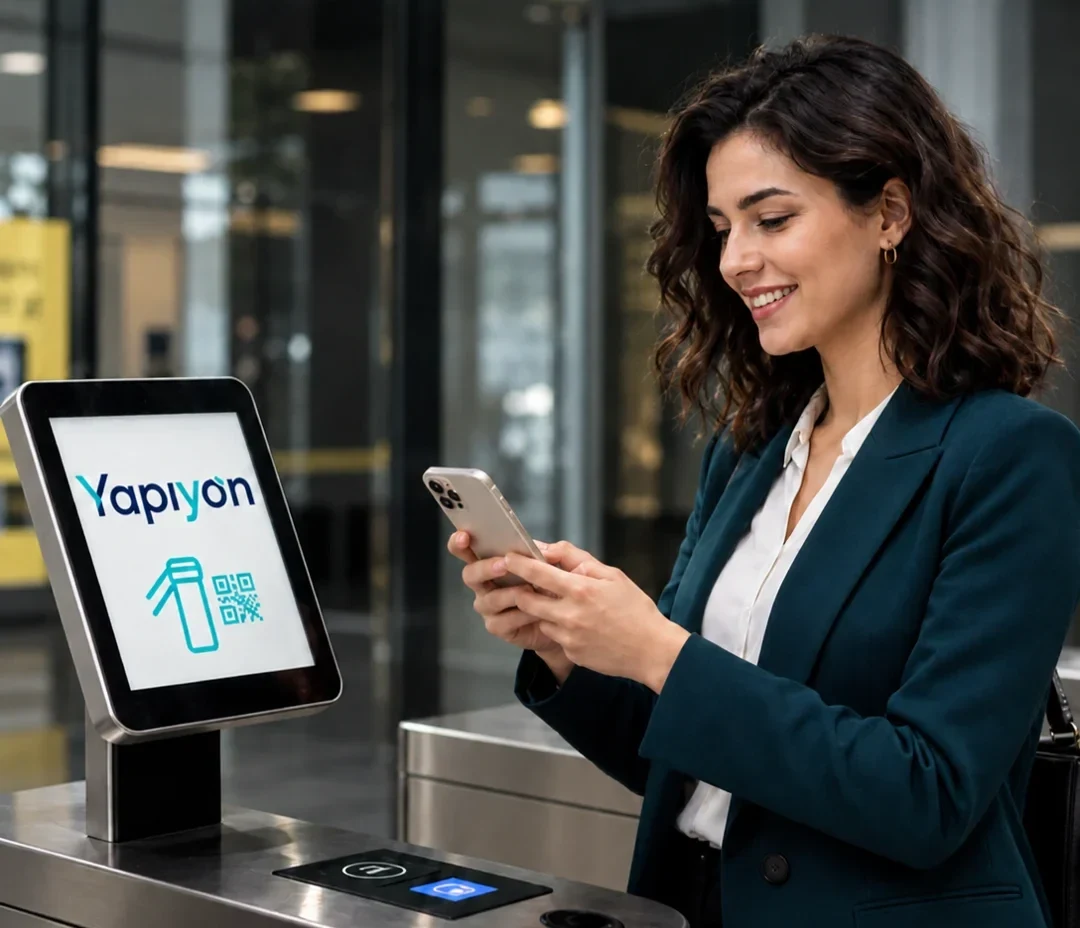
A resident scanning the QR code on their phone at the turnstile screen.
Access with QR, HGS and plate recognition

Don't have your access card with you? Enter with a QR code.

Residents enter by scanning the QR code on their phone. Vehicles pass with HGS or plate recognition (PTS); every entry is recorded.

  • QR code at the pedestrian entrance
  • HGS and plate recognition (PTS) at the vehicle entrance
  • Visitor and guest vehicle registration
Security and access
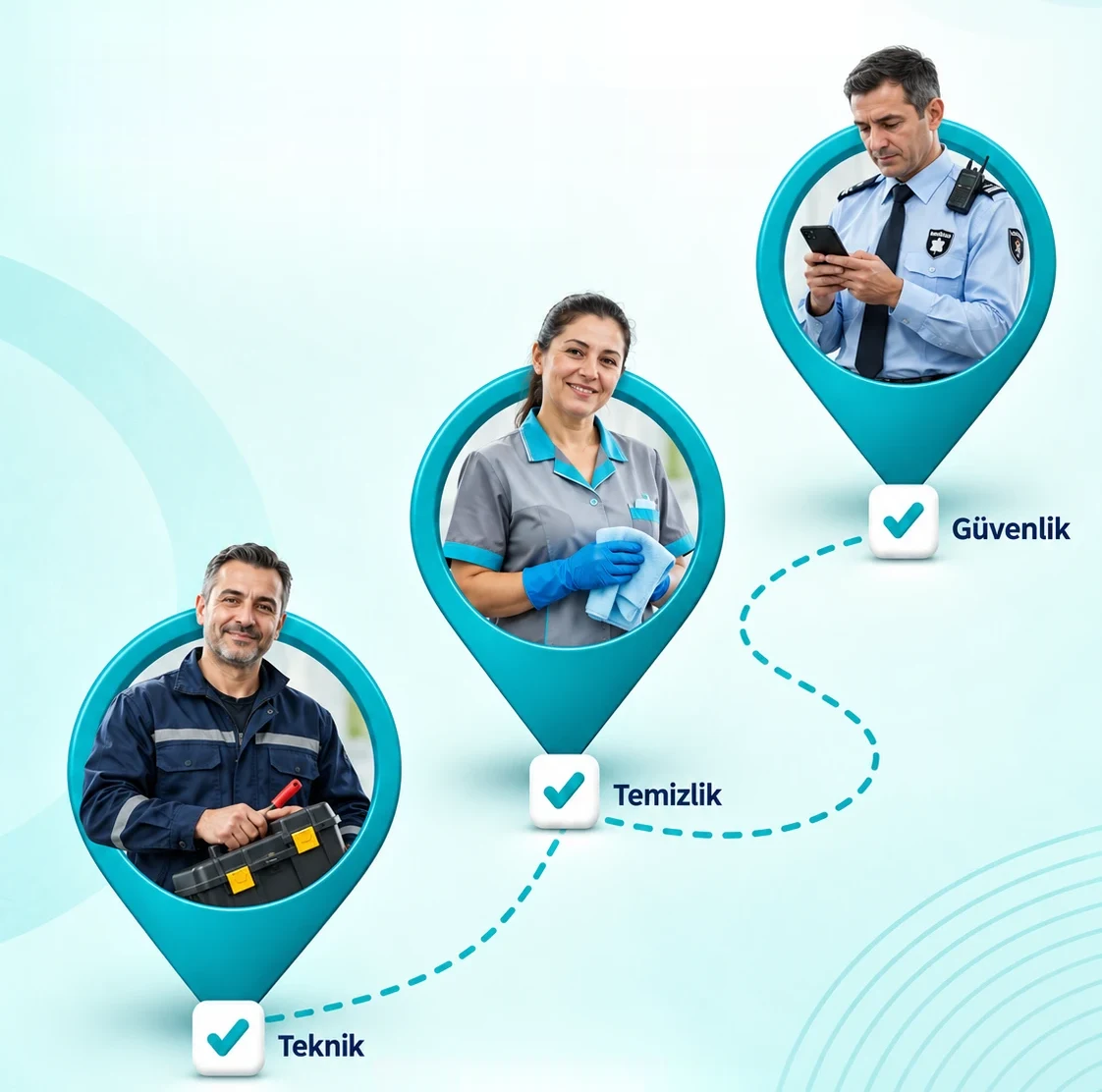
Round checkpoints for technical, cleaning and security staff; each checkpoint marked as checked with a tick.
Round control system

Your team is in the field. You are in control.

Security, cleaning and technical staff carry out their rounds by phone; a record is created each time they scan the QR code at a checkpoint.

  • Security: patrol points and incident reports
  • Cleaning: area cards and task sign-off
  • Technical: work orders, photos and costs
How do I…?

Step by step, with the panel's own guide

The steps below are the same as those written in this screen's “How do I…?” card in the panel.

  1. Press Add Staff; enter the person's details and their role.

  2. For a staff member to log in to the portal, press Edit on their card and send an invitation from the Portal invitation box at the bottom of the page (Send by email, Send by SMS or Copy link); the person sets their own password, and you never need to tell anyone a password.

Caution: Consult your manager before deleting the record of a staff member who has left; past shift and salary records are tied to this record. Set the record of a staff member who has left to inactive: their open session is closed immediately.

YonaYou don't need to search the menu to find this screen. Just write something like this to me:

“security guard”“add staff”“staff card”“assign a task”“assign task”“task for staff”“shift”“working hours”“shift plan”

Introduce your property to Yona, our AI robot.

Select your number of units and enter your details; the agreement and payment link arrive the same day.